
Key Takeaways
- Minimum Order Quantity, or MOQ, is the minimum number of units or minimum order value a customer must meet before placing an order.
- MOQ is useful for wholesale, B2B, manufacturing, food and beverage, apparel, promotional products, and any store where very small orders are not profitable.
- You can set the Minimum Order Quantity on Shopify using the native quantity rules to define minimum, maximum, and increment quantities for B2B purchases.
- For non-B2B stores, mixed B2C/B2B stores, customer tag-based rules, and cart-level minimum order values, a Shopify MOQ app is usually the easier option.
- You can set MOQ at different levels: product level, variant level, collection level, customer group level, or cart value level.
- MOQ works best when the rule is clearly shown on the product page, cart page, and bulk order form before the customer reaches checkout.
- If you are still using Shopify Scripts for MOQ or checkout logic, you should plan a migration because Shopify Scripts stop working on June 30, 2026.
What is Minimum Order Quantity (MOQ)?
Minimum Order Quantity, or MOQ, is the minimum quantity or minimum order value a customer must meet before they can place an order.
For example:
- A product may require a minimum order of 12 units.
- A wholesale customer may need to spend at least $300 per order.
- A product may need to be purchased in case packs of 6.
- A B2B buyer may need to order at least 50 units of a specific SKU.
MOQ helps merchants avoid small, low-margin orders that are not profitable to fulfill. It is especially useful for wholesale sellers, manufacturers, distributors, food brands, apparel brands, and stores that sell products in bulk.
MOQ can help you:
- Maintain profitability on bulk orders
- Increase average order value
- Reduce fulfillment costs
- Avoid unprofitable small orders
- Separate retail and wholesale buying rules
- Make buyers order in proper pack sizes or case quantities
Who Needs MOQ Rules on Shopify?
MOQ rules are useful for any Shopify store where very small orders are difficult, expensive, or unprofitable to fulfill.
They are especially useful for:
- Wholesalers: To make sure buyers order in profitable quantities.
- Manufacturers: To avoid small production runs or low-volume orders.
- B2B sellers: To set different rules for business buyers and retail buyers.
- Food and beverage brands: To sell in cases, packs, or cartons.
- Apparel brands: To set minimum quantities by style, size, or color.
- Promotional product sellers: To require minimum quantities for custom products.
- Retail stores with wholesale programs: To allow retail customers to buy 1 unit while wholesale buyers follow higher minimums.
Types of MOQ rules you can set on Shopify
Before setting up MOQ, it is important to decide what kind of minimum rule your store actually needs.
Product-level MOQ
This means the customer must buy a minimum quantity of a specific product.
Example: A customer must buy at least 12 units of a candle.
Variant-level MOQ
This means the minimum quantity applies to a specific variant.
Example: A customer must buy at least 24 units of the “Large / Black” variant.
Cart-level minimum order value
This means the customer must spend a minimum amount before checkout.
Example: Wholesale buyers must place an order worth at least $300.
Customer group-based MOQ
This means MOQ applies only to specific customers.
Example: Retail customers can buy 1 unit, but wholesale customers tagged as b2b must buy 50 units.
Quantity increment rules
This means customers can buy only in fixed multiples.
Example: A product must be ordered in packs of 6, 12, 18, or 24.
Maximum order quantity
This is not MOQ, but it is often used together with MOQ. It lets you stop customers from buying more than a certain quantity.
Example: A limited product has a maximum order quantity of 10 units per customer.
How to Offer Minimum Order Quantity on Shopify (Step-by-Step)
There are three main ways to set up MOQ on Shopify:
- Use Shopify B2B quantity rules
- Use a Shopify MOQ app
- Use custom checkout validation or Shopify Functions
The right method depends on your store setup and how complex your MOQ rules are.
Method 1: Use Shopify B2B quantity rules
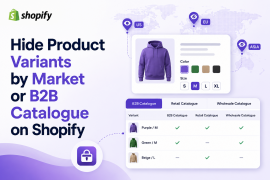
If you are using the recently launched Shopify’s B2B features, you can set quantity rules inside B2B catalogs.
This is useful when your MOQ rules are mainly for business buyers and product-level quantities.
You can use quantity rules to set:
- Minimum quantity
- Maximum quantity
- Quantity increments
For example, if you sell products in packs of 12, you can set a minimum of 12 and an increment of 12. This helps make sure B2B customers order in the right pack size.
Shopify’s B2B plan documentation shows quantity rules and quantity price breaks as available B2B catalog/product features across paid plans, with different limits for catalogs depending on the plan.
This method is best if:
- You are using Shopify B2B
- You want product or variant-level rules
- You want customers to buy in fixed quantities
- You want native quantity rules connected with B2B catalogs
This method may not be enough if:
- You need cart-level minimum order value
- You want MOQ for retail customers too
- You want customer tag-based rules outside native B2B
- You need more visible warnings before checkout
- You want MOQ to work with a custom wholesale order form
Method 2: Using a Shopify MOQ App
Step 1: Install a Shopify MOQ App
Install a Shopify app that supports minimum order quantity and minimum order value rules.
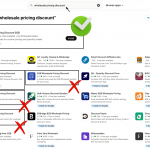
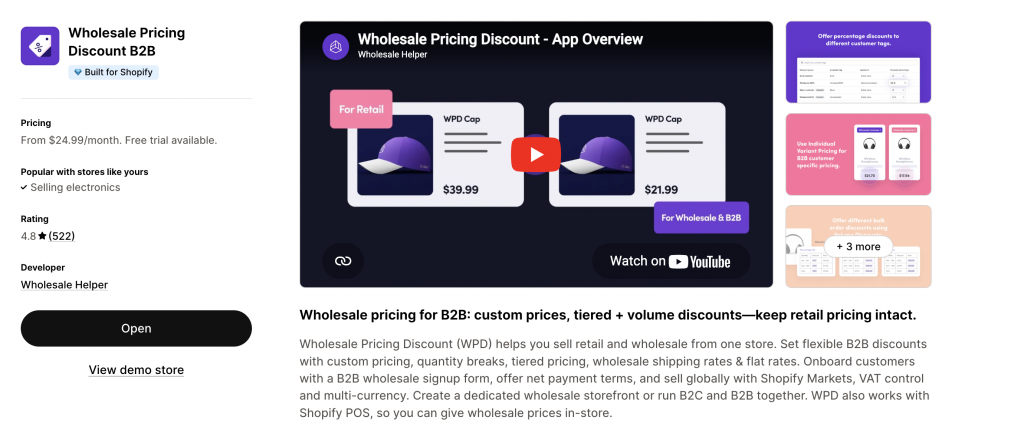
For example, Wholesale Pricing Discount B2B can be used to set MOQ rules for products, variants, carts, and customer groups.
Step 2: Create a Discount Group with MOQ Rules
- Open the app
- Go to Create Discount Group

- Assign customer tags (e.g., b2b, net-30)
- Select products or collections
- Set: > Minimum quantity per SKU > Minimum total cart value

Step 3: Test the Buying Flow
Preview as Customer to check:
- MOQ warnings
- Checkout blocking if the minimum isn’t met
- Visibility differences between tagged and untagged users
Step 4 (Optional): Add Bulk Ordering
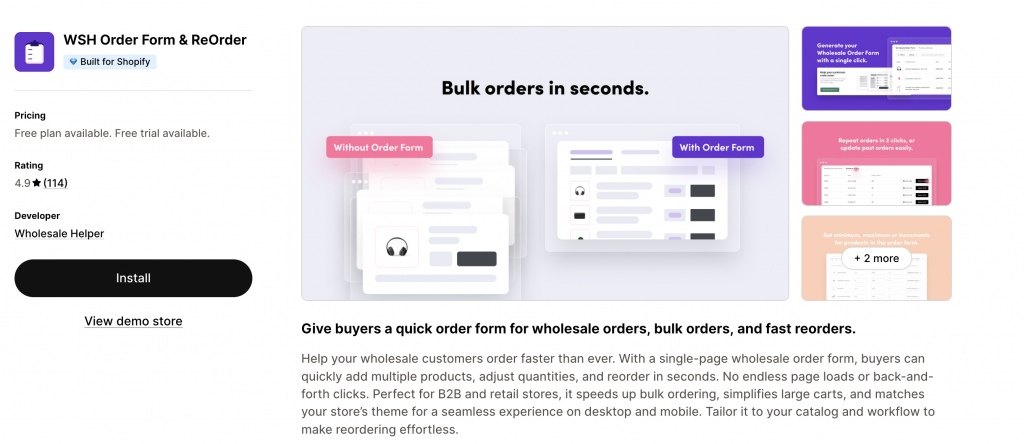
Pair with WSH Order Form & ReOrder to let B2B buyers:
- Bulk-add products
- Quickly reach minimums
- Reorder easily
Method 3: Use custom checkout validation or Shopify Functions
If you have a very specific MOQ requirement, you can use custom checkout validation or Shopify Functions.
Shopify’s Cart and Checkout Validation Function API allows developers to create rules that check whether an order meets specific conditions before allowing checkout. Shopify’s docs say these validations run server-side and can include express checkout flows such as Shop Pay, PayPal, Google Pay, and Apple Pay.
This method can be useful for custom rules like:
- Minimum cart value by customer type
- Minimum quantity by product group
- Blocking checkout based on cart contents
- Complex rules that apps cannot handle
However, this method usually requires developer support. For most merchants, an app-based setup is faster and easier.
Real-World MOQ Example
Let’s say you sell reusable bottles on Shopify. Retail customers can order one bottle at the regular price.
Wholesale customers, however, need to meet different order rules:
- Minimum 50 units per SKU
- Minimum cart value of $250
- Products must be ordered in case packs of 10
If the customer adds only 20 units, they see a message like:
This product requires a minimum order quantity of 50 units.
If the cart value is below $250, they see:
Wholesale orders must be at least $250 before checkout.
This helps the buyer understand what they need to fix before placing the order.
Technical Implementation Details
There are a few technical ways to implement MOQ on Shopify.
App-based setup
This is the easiest option for most merchants. You install an MOQ app, create your rules, and test the buying flow. It does not require coding and works well for product-level, cart-level, and customer group-based MOQ rules.
Native B2B quantity rules
If your store uses Shopify B2B, you can use quantity rules inside B2B catalogs. This is useful for setting minimum, maximum, and increment quantities for B2B buyers.
Shopify Functions and checkout validation
If your MOQ logic is highly specific, a developer can build validation rules using Shopify Functions. This gives more control but requires technical work.
Avoid relying on Shopify Scripts
Shopify Scripts should not be recommended as a long-term MOQ solution anymore. Shopify has confirmed that the Script Editor app is no longer available for download, and Shopify Scripts will be removed and stop working on June 30, 2026. Existing Script-based logic should be migrated to Shopify Functions or public apps.
Business Benefits of Using Minimum order quantity (MOQ)
MOQ rules can help your Shopify store become more profitable and easier to manage.
| Benefit | Impact |
|---|---|
| Larger orders | Increases average order value |
| Fewer small orders | Reduces low-margin fulfillment work |
| Better wholesale control | Keeps B2B buyers on proper buying rules |
| Cleaner operations | Helps customers order in pack sizes or case quantities |
| Better inventory planning | Makes demand more predictable |
| Stronger pricing strategy | Works well with volume discounts and wholesale pricing |
MOQ Best Practices for Shopify Stores
Setting MOQ is not just about blocking small orders. It should also make sense for your customers.
Here are some best practices:
- Show MOQ clearly on product pages.
- Repeat the MOQ message in the cart.
- Use simple language like “Minimum order: 12 units.”
- Explain why the minimum exists if needed.
- Use pack sizes and increments that match how products are shipped.
- Keep different rules for retail and wholesale customers if both buy from the same store.
- Test the rule on mobile.
- Make sure the checkout error message is clear.
- Pair MOQ with volume discounts to make larger orders feel more valuable.
- Use a bulk order form if customers usually order many SKUs at once.
Final Summary
You can set Minimum Order Quantity on Shopify in different ways depending on your store setup.
If you use Shopify B2B, native quantity rules can help you set minimum, maximum, and increment quantities for business buyers.
If you need more flexible rules, such as cart-level minimum order value, customer tag-based rules, retail and wholesale rules, or product-specific warnings, a Shopify MOQ app like Wholesale Pricing Discount B2B can be a better option.
Using Wholesale Pricing Discount B2B, you can:
- Apply MOQ rules at the product or cart level
- Create different rules for different customer groups
- Set wholesale-only minimums
- Control small, low-margin orders
- Improve average order value
- Pair MOQ with WSH Order Form & ReOrder for faster bulk ordering
The best MOQ setup is the one that is clear for customers and easy for your team to manage.
When native B2B is not enough, Wholesale Pricing Discount is the next step.
Try our Wholesale Pricing Discount app for free !
Trusted by over 16,000 Shopify merchants
Frequently Asked Questions
Can I apply different MOQ rules for different products?
Yes. You can apply per-product or per-variant MOQ rules inside the Wholesale Pricing Dicount B2B app setting.
Can I enforce minimum cart value instead of quantity?
Yes. You can set rules like “minimum $200 order total” in and then proceed your customer to checkout.
Can I show MOQ messages on product pages?
Yes. You can display a message such as, “MOQ: 10 units” or custom alerts on PDPs, carts, or order forms.
Can I apply MOQ rules only to wholesale customers?
Yes. You can use customer tags (e.g., wholesale-tier-1) and add that tag to the Wholesale Pricing Discount B2B apps’ Discount settings to restrict MOQ logic.
What happens if the MOQ isn’t met?
If your customer isn’t met the MOQ value for their order, you can:
- Prevent cart updates until fixed
- Block checkout
- Show warnings
Can I set minimum order quantity in Shopify?
Yes. You can set minimum order quantity in Shopify using native B2B quantity rules, a Shopify MOQ app, or custom checkout validation. The best method depends on whether you need product-level rules, cart-level rules, B2B-only rules, or custom customer group rules.