
Key Takeaways
- “Login to view price” means visitors can browse your products, but they need to sign in before they can see pricing or place an order.
- This setup is useful for wholesale stores, trade-only catalogs, MAP pricing rules, distributor pricing, private collections, and B2B stores that do not want pricing visible to the public.
- The fastest way to add this on Shopify is usually through a locking or wholesale gating app, especially if you want to hide prices, add-to-cart buttons, product pages, collections, or specific content based on customer tags.
- Shopify’s native B2B features are now available across Basic, Grow, Advanced, and Plus plans, but the limits differ by plan. Basic, Grow, and Advanced support B2B catalogs with limits, while Plus gives more advanced catalog and company-level control.
- For SEO, do not block the full product page unless the store is fully private. Keep product titles, descriptions, images, and collection content crawlable, and only hide the pricing and purchase actions.
The message “Login to view price” on Shopify means that visitors can look at products, but they cannot see prices or make purchases until they sign in. This is common for wholesale and trade-only catalogs, brands that follow Minimum Advertised Price (MAP) rules, and B2B distributors using Shopify.
Follow the steps mentioned in this article to implement the login to view price functionality on your Shopify store.
When should you implement “Login to view price” on your Shopify store?
If you are developing a storefront where product pages, collections, and search results are publicly visible to the public, but you DON’T want to display prices, add-to-cart buttons, and cart actions on the storefront until the customer has an approved account and is logged in, then you should implement this functionality.
Implementing “Login to view price” keeps your retail pricing private, supports minimum advertised pricing (MAP) or trade policies, and reduces the risk of price scraping. When done correctly, it also provides genuine buyers with a smooth process to apply for an account, get approved, and begin ordering without the hassle of back-and-forth emails. This feature is typically required by stores that sell wholesale, B2B products, or exclusive items.
Two options to implementing Login to View Price on Shopify Store
Option A — Stores on ANY Shopify plan (app-first, fast to launch)
This is the simplest path for most Shopify merchants. You use a locking or wholesale access app to hide prices, add-to-cart buttons, collections, or product pages until the customer logs in and has the right approval tag.
Use this setup if you want to launch quickly without editing theme code or building a custom B2B flow.
1. Install a gating app that supports “login to view price” and collection or storewide locks. Wholesale Helper’s Wholesale Lock Manager B2B is best suited for this use case, but any reputable app with similar controls will work.
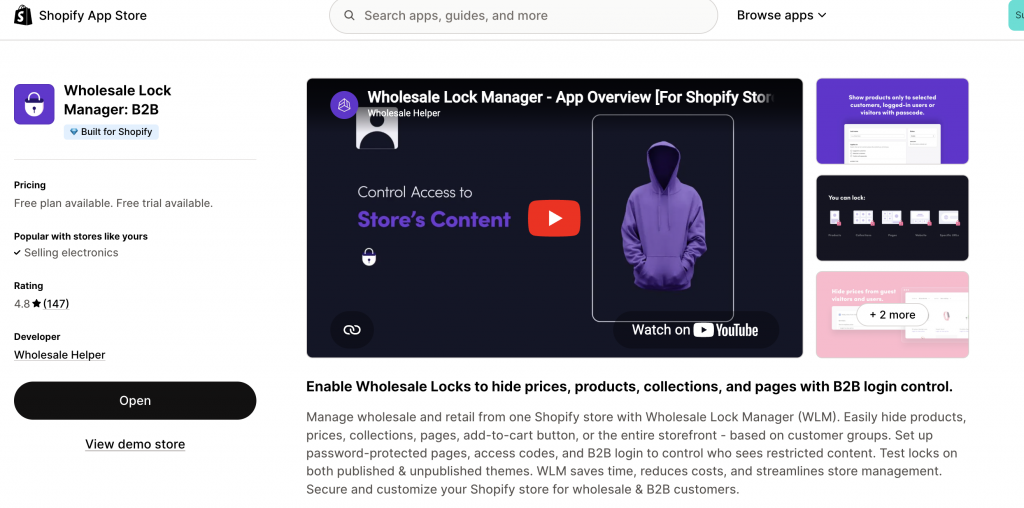
2. Create a wholesale lock using the app and decide what items will be hidden. You can hide prices, add-to-cart buttons, products, pages, URL’s, and even specific collections until a user is logged in and has the correct tag.
3. Decide who is allowed in: Add a simple wholesale application form with review submissions, and tag approved accounts (for example, wholesale-approved). The app uses that tag to show prices only to those buyers. You can also simply tag existing customers and then apply these controls based on customer tags.
4. Customize the message for logged-out visitors: Replace the price with a friendly prompt such as “Please sign in to view trade pricing” and add a clear “Login” and “Apply for Access” link. Make sure this appears in product cards, product pages, quick-view modals, and search results so there are no leaks.
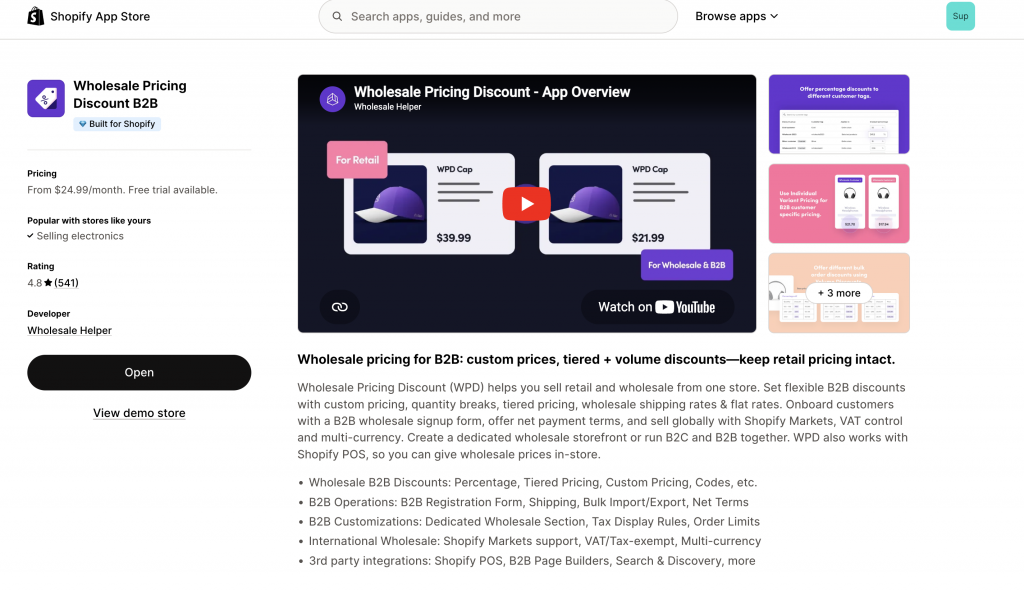
5. Connect pricing once unlocked (Optional): Pair the gate with Wholesale Pricing Discount B2B or your preferred price-list method so approved customers immediately see their correct or special prices (if any) and any volume breaks after they log in.
6. Test the full journey: Visit your Shopify store in a private browser window to confirm prices are hidden. Now, log in with a tagged account to confirm prices and add-to-cart return as expected. Check collection pages, search, recommended products, quick add, and the cart drawer.
Why does this path A work?
The app wraps all the common price locations and edge templates for you, so you do not have to edit theme code across dozens of snippets. It is the quickest solution, and it scales well when you add new sections or a fresh theme. You can also run a B2B+B2C store using the above-mentioned apps. That is, implement “Login to view price” for only certain products or collections.
Option B — Native Shopify B2B setup
Shopify now has native B2B features across Basic, Grow, Advanced, and Plus plans, but the feature depth depends on your plan.
Native Shopify B2B can help you create companies, company locations, catalogs, payment terms, quantity rules, volume pricing, and B2B checkout experiences. B2B customers need to sign in before they can access B2B-specific information such as products and pricing.
This setup works best if you want to manage B2B customers inside Shopify’s company and catalog system.
Use this path when:
- You want approved B2B customers managed as companies.
- You want catalog-based pricing and product availability.
- You want B2B buyers to sign in through Shopify customer accounts.
- You need quantity rules, volume pricing, or payment terms.
- You are okay with Shopify’s plan-based B2B limits.
Important note: Native B2B is not the same as a full “hide all prices from everyone” setup. If you run a blended B2C and B2B store, public visitors may still see your normal retail experience unless you add theme logic or an app-based lock. Shopify’s B2B access controls are mainly for B2B-specific pricing, products, content, and checkout rules.
For a cleaner login-to-view-price setup, many stores still use a locking app on top of Shopify or use Liquid logic in the theme.
2. Limit price visibility to logged-in buyers
If you are comfortable editing your theme, you can use Liquid logic to show price only to approved B2B customers. Add a short liquid condition in your theme that checks for a logged-in customer (or for a company context in a blended store) before rendering the product price and purchase form. Logged-out visitors see a prompt to sign in or request access.
Here’s a clean Liquid example you can drop into your product template (or a snippet that renders product price):
{%- comment -%}
  Login to View Price logic for Shopify

  Shows price only when:
  1. Customer is a native Shopify B2B customer, OR
  2. Customer has an approved wholesale tag

  Replace /pages/wholesale-application with your actual wholesale application page.
{%- endcomment -%}

{%- assign is_approved_b2b_customer = false -%}

{%- if customer -%}
  {%- if customer.b2b? -%}
    {%- assign is_approved_b2b_customer = true -%}
  {%- endif -%}

  {%- if customer.tags contains 'wholesale-approved' or customer.tags contains 'trade' or customer.tags contains 'b2b' -%}
    {%- assign is_approved_b2b_customer = true -%}
  {%- endif -%}
{%- endif -%}

{%- if is_approved_b2b_customer -%}

  <div class="wholesale-price">
    {% render 'price', product: product, use_variant: true, show_badges: true %}
  </div>

{%- elsif customer -%}

  <div class="login-to-view-price-message">
    <p>Wholesale pricing is available after account approval.</p>
    <a href="/pages/wholesale-application">
      Request wholesale access
    </a>
  </div>

{%- else -%}

  <div class="login-to-view-price-message">
    <p>Login to view price</p>

    <a href="{{ routes.account_login_url }}">
      Login
    </a>

    <span> or </span>

    <a href="/pages/wholesale-application">
      Apply for wholesale access
    </a>
  </div>

{%- endif -%}
3. Optionally segment by market or channel
If you run both B2C and B2B in the same store, render consumer prices for retail customers and hide them for everyone else until they sign in.
4. Keep checkout tidy
Use Payment or Delivery Customizations to show B2B-only methods (for example, invoice on terms) to Companies, while retail buyers continue to see cards and wallets.
Theme and UX details for implementing “Login to view price”
Even with a good app or Plus logic, it is easy to miss a location where the price appears. Walk through these points carefully:
- Product cards and quick-views: Make sure the card component hides the price and “quick add” when the user is not authorized.
- Structured data (schema): Remove price fields from Product JSON-LD for logged-out users so search engines do not index your prices. Keep brand, title, and availability so the page still earns rich results where appropriate.
- Search and predictive search: Confirm your predictive search or “typeahead” does not reveal prices in the dropdown.
- Bundles and upsells: Check any bundle, upsell, or recommendation widget for price text and strike-throughs and hide them when the user is not logged in.
- Translations and markets: Ensure the “login to view price” message is localized and that VAT/GST notes make sense by market once a user signs in.
- Applications and onboarding: Keep the access request short and give a clear service level, such as “We approve new trade accounts within one business day.”
Approval and Pricing Plan for “Login to View Price Setup”
A login wall without a pricing plan leads to confusion. Tie your gate to a simple set of rules.
- Customer groups and tags: Approve accounts, apply a tag, and map that tag to a price list or discount rule. If you use Wholesale Pricing Discount B2B, you can assign collection-level or variant-level prices and volume tiers to the group.
- Minimums and multiples: If your B2B program has MOQs or case packs, enforce them at the same time you reveal the price. Buyers should learn the rule once on the product page and see the same rule in the cart.
SEO Notes for “Login to View Price” Implementation
- Index content, not price. A login wall should not block Google from reading your product names, descriptions, and media. Let crawlers index the page content while omitting price fields from schema and visible markup when the visitor is not authenticated.
- MAP and channel policy: If brands enforce MAP, the wall helps, but you should still avoid showing discounted compare-at prices in public feeds or structured data.
- Accessibility: The “login to view price” message should be readable by screen readers, and the login / apply buttons should be keyboard-focusable.
Final Summary on Login to View Price Setup on Shopify Store
“Login to view price” is a straightforward statement about how your wholesale program operates. Restore the entire shopping experience only after the account has been approved, ask customers to sign in for pricing, and keep the public website open for exploration.
Focus on unambiguous messaging, uniform guidelines, and extensive testing across all price points, regardless of whether you opt for a native B2B setup on Shopify Plus or an app-first strategy on a standard plan. Serious customers will sign up, place orders fast, and return when they need to restock if you maintain a consistent and calm experience.
When native B2B is not enough, Wholesale Pricing Discount B2B is the next step.
Try our Wholesale Pricing Discount B2B app for free !
Trusted by over 16,000 Shopify merchants
Frequently Asked Questions Around Login to View Price on Shopify Store
Can I show MSRP to the public and wholesale price after login?
Yes. Many stores display a neutral label such as “Contact for pricing” or “Login to view trade price” to the public, while MSRP is kept off the page. After login, the wholesale price and any volume breaks appear.
Will Google penalize me for hiding price?
No. Search engines do not require price to index your pages. Make sure your titles, descriptions, and images remain visible and that your Product JSON-LD for logged-out users does not include price fields.
Can I allow some products to show price publicly and hide others?
Yes. You can gate by collection or product tag. Public lines can show price as usual, while restricted lines stay behind the login wall.
We sell to both retail and wholesale in one store. Can retail still checkout normally?
Yes. Retail customers see normal prices and payment methods. Wholesale customers log in, see their trade prices, and may also see different shipping and payment options if you configure those rules.
How do I keep support tickets low during onboarding?
Keep the application form short, explain your approval timeline, and send a welcome email that explains pricing, MOQs, shipping, and payment options. Add a short FAQ to your trade page so buyers know what to expect.
Do I need Shopify Plus for “login to view price”?
No. You do not need Shopify Plus just to hide prices until login. You can use a locking app on most Shopify plans. Shopify’s native B2B features are also available across more plans now, but the exact catalog and company-level controls depend on your plan.